
HR Manage module
Compliance — know who is valid, today
Define what each role needs and attach it to people automatically. AI reads the uploads; HR only confirms.
at mining, security and industrial sites who must prove everyone on site is valid.
who need the contracting company and its people held to the same requirements.
the manual read: AI identifies each upload, matches it to a requirement and reads the dates. A person confirms.
Requirements defined once, attached by role and site
A requirement type describes one document or certificate. It sets whether an attachment is optional or required and how many months it stays valid. It also says whether it applies to people or companies. Requirement groups bundle types with the training a role must hold. Groups attach to people automatically through job title or location, and to contractors through their external company. Move a person to a new position and the right group follows. Practitioners can also link groups by hand or in a batch. Each type can carry custom fields and can be limited to a security group.
AI-assisted document checks
Upload a batch of documents to a Load Requirements activity and the system does the first read. For each file the AI says which requirement type it is and how confident it is. It extracts the issue date, expiry date, reference number and any custom fields set up for extraction. In combined mode a single scan is split into one document per requirement, page by page. Expired or duplicate documents are flagged, not silently imported. Nothing is saved until a person reviews the staged rows and confirms. AI runs only for users in the AI role, with the models and cost ceiling the activity allows.
Requirement types that teach the AI from samples
Each requirement type has an AI mode: off, identify only, or identify and extract. For the extract mode an administrator uploads up to five sample files. The model writes the description, identification instructions and per-field extraction instructions for the type. Those texts are then what the batch upload reads against. Lookup fields map extracted text to the closest lookup value. The prompt wording lives in a managed skill library, so tuning does not need a new HR Manage build.
Expiry on the manager's home page
Managers get an Expiring Compliance widget on the web home page. It lists the team's expired and expiring-soon items, documents and training, ordered by expiry date. The team compliance page lists every subordinate with status counts and filters; advanced filters are a security role. On a person's file the compliance summary shows valid, expiring, expired and never-loaded items. An Immediate Attention list sits above the documents, shown only where the viewer may see them. Managers can request renewal training from the training view when expiry is due.
Compliance inside workflows
Two workflow activities carry compliance. Load Requirements presents the checklist for a requirement group and accepts uploads and AI batches. It will not sign off until required items are loaded. Save Requirements writes the loaded documents onto the person's record as new versions. The previous version stays in history. Both run inside onboarding, contractor induction or renewal workflows alongside forms, decisions, document generation and sign-off. Workflow escalations send per-workflow emails when an activity stalls, so a missing document reaches the right person. Each requirement remembers the activity that created it.
Contractor and company compliance
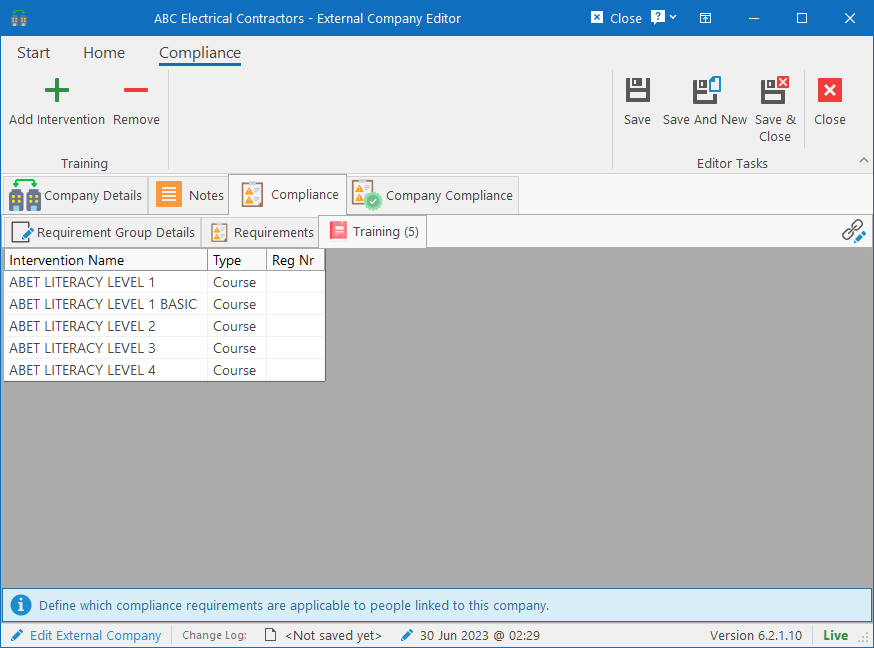
An external company is a record with its own requirement group. The company's documents are checked, not only its people's. Contractors link to a main contractor and a sub-contractor. They inherit the groups for where they work and what they do. A person's compliance view includes the contracting company's status. AI batch uploads can identify a person or a company from the documents. The files then route to the right record. The compliance pack downloads every attachment in a group as one zip for an audit. A compliance summary PDF prints the checklist.
---

Everything the module covers
Requirement types
Validity in months, attachment optional or required, people or companies.
Requirement groups
Documents plus training per role; linked by job title, location or company.
Auto-linking
Groups follow the person when they move position or site.
AI identification
Each upload matched to a requirement type with a confidence score.
Field extraction
Issue date, expiry date, reference number and custom fields read from the document.
Combined scans
One PDF split into documents per requirement, page by page.
Duplicate and expiry handling
Expired or duplicate uploads flagged for review, never auto-saved.
Versioned requirements
Replacements keep the previous version in history.
Statuses
Never loaded, expired, expiring soon, valid — same scale for documents and training.
Expiring widget
Manager home page lists what expires next across the team.
Compliance pack
All attachments in a group as one zip; summary PDF on demand.
Security
Types limited to security groups; AI limited to an AI role and cost ceiling.
Works with the rest of HR Manage
Used by large employers in mining and security to show who is valid on site. Clients since 2001 include Assore, Fidelity, Tshipi and Metorex.


Questions we get asked
What does the AI actually do with an uploaded document?
It reads the page images and says which requirement type the document is, with a confidence score. For types set to extract, it reads the issue date, expiry date and reference number. Custom fields configured for the type are read too. It can split one combined scan into separate documents. The result is staged on the page; a person reviews each row and confirms before anything is saved.
Can we switch AI off, or limit who uses it?
Yes. AI is off unless a requirement type enables it. The upload panel only appears for users in the AI role. Each activity sets which models may run and a maximum AI cost. A person who may use no model sees no panel. AI features are optional and metered separately from the licence.
How do requirements reach the right people?
Requirement groups attach to people through job title, location or external company. When a person is appointed or moves, the groups for the new role and site apply. Practitioners can also link a group by hand to one person or to a filtered batch. Each person's compliance view shows which groups apply and why they were linked.
How do we see what is about to expire?
Each requirement type sets a validity period in months. Items become expiring soon, then expired, on the same scale used for training. Managers see the team's expiring and expired items on their home page and on the team compliance page. Practitioners run compliance reports and dashboards in the Windows application.
Does it cover contractors and their companies?
Yes. Requirement types apply to people or to companies. An external company has its own requirement group, and the people it supplies inherit groups for where they work. A person's view includes the contracting company's status. Access control integration to stop non-compliant people at the gate is offered as a client-specific interface.
---
Every document checked, every expiry seen in time.
A 45-minute walkthrough on your own org structure, with your questions answered by the people who build it.